
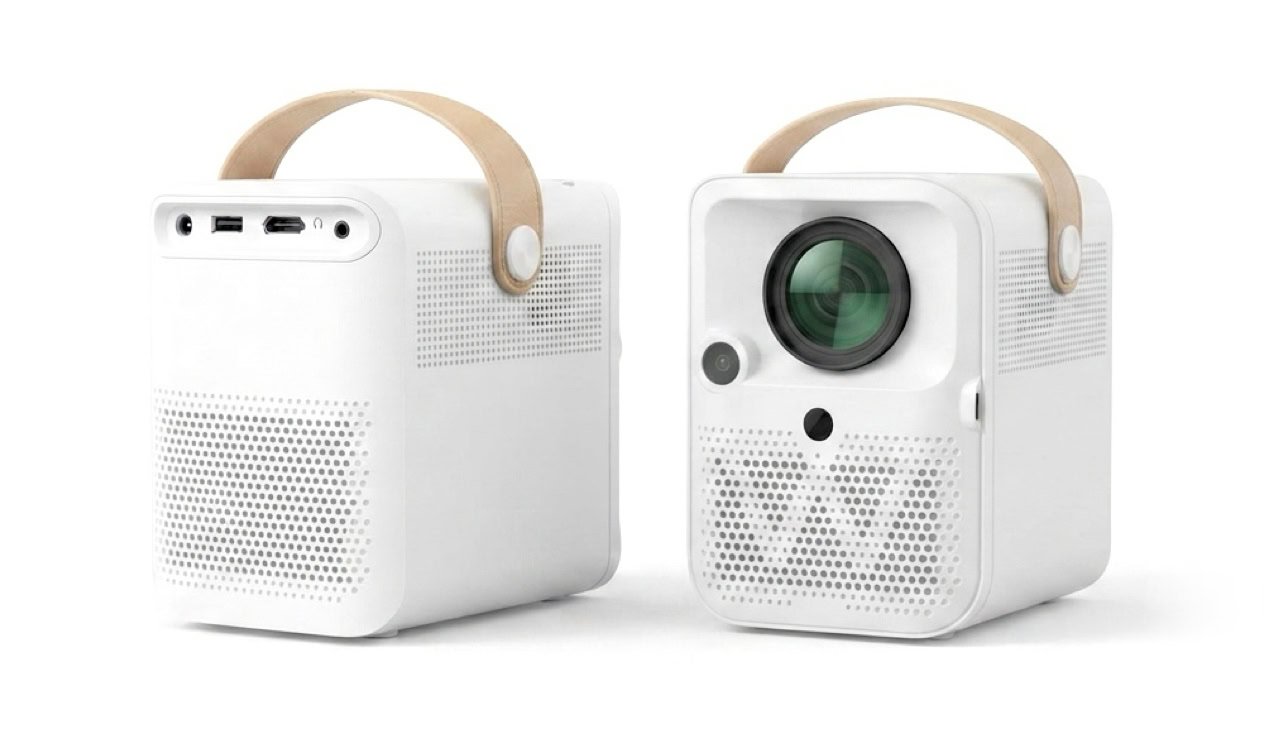
Even with robust hardware, occasional setup hiccups or environmental interference can impact your interactive projection experience. This master troubleshooting guide breaks down the five core diagnostic domains—covering root causes and corrective step-by-step solutions to get your classroom back on track instantly.
WBiPro Interactive Smart Projector Troubleshooting Snapshot
| Diagnostic Domain | Primary Symptom | Root Cause Analysis | Corrective Step-By-Step Solution |
|---|---|---|---|
| Interactive Tracking | ePen cursor jumps, lags, or fails to respond. | 1. Obstruction between ePen and IR sensor. 2. Direct sun IR interference. 3. Low ePen battery. 4. Disconnected USB data cable. |
1. Ensure you are not obstructing the projector’s camera from seeing the ePen. 2. Block direct sunlight with window blinds. 3. Replace AAA ePen battery. 4. Re-plug USB Type-A to Type-C cable. |
| Video Input | “No Signal” on screen when connected to laptop. | 1. Laptop display mode issue. 2. Loose HDMI connection. 3. Resolution mismatch. |
1. Press Win+P and choose Duplicate. 2. Reseat HDMI cable. 3. Set output resolution to 1920×1080 @ 60Hz. |
| Optical / Display | Image blurry, trapezoidal, or distorted. | 1. Focus dial out of adjustment. 2. Angle to wall. 3. Distance out of bounds. |
1. Adjust lens focus ring. 2. Ensure throw distance between 0.94m and 3.5m. 3. Apply 4-point keystone correction in Settings. |
| Power / Thermal | Projector powers off unexpectedly; RED LED flashing. | 1. Overheat thermal protection active (>55W). 2. Blocked air vents. |
1. Disconnect power cord immediately. 2. Allow cooling for 15 mins. 3. Clear ventilation exhausts and restart. |
| Audio Routing | No sound from built-in 2x3W speakers. | 1. Audio output set to PC speakers. 2. Headphone jack inserted. |
1. Set audio output device to WBiPro (HDMI Audio). 2. Disconnect 3.5mm headphone cable. |
WBiPro Interactive Smart Projector Troubleshooting
1. Interactive Tracking & ePen Issues
- Primary Symptom: ePen cursor jumps, lags, or fails to respond.
- Root Cause Analysis: Obstruction between the ePen and IR sensor, direct sun infrared interference, low ePen battery, or a disconnected USB data cable.
- Corrective Step-by-Step Solution:
- Ensure you are not obstructing the projector’s camera from seeing the ePen.
- Block direct sunlight hitting the projection surface using window blinds.
- Replace the exhausted AAA ePen battery.
- Apply sufficient pressure against the projected surface to trigger the infrared light in the ePen.
- Re-plug the USB Type-A to Type-C data cable connecting your computer to the projector.
2. Video Input & Display Connection
- Primary Symptom: “No Signal” appears on the screen when connected to a laptop.
- Root Cause Analysis: Laptop display projection mode misconfigured, loose HDMI connection, or a resolution mismatch.
- Corrective Step-by-Step Solution:
- Press
Win + Pon your keyboard and choose Duplicate or Extend. - Reseat the HDMI cable at both ends to ensure a secure connection.
- Set your laptop output display resolution to 1920×1080 @ 60Hz for optimal compatibility.
- Press
3. Optical & Display Distortion
- Primary Symptom: Projected image is blurry, trapezoidal, or distorted.
- Root Cause Analysis: Lens focus dial out of adjustment, projector angled incorrectly to the wall, or throw distance out of bounds.
- Corrective Step-by-Step Solution:
- Manually adjust the physical lens focus ring until the image sharpens.
- Ensure your throw distance is positioned between 0.94m and 3.5m from the wall.
- Apply 4-point keystone correction in the system settings to square up the display.
4. Power & Thermal Protection
- Primary Symptom: Projector powers off unexpectedly with a flashing RED LED light.
- Root Cause Analysis: Overheat thermal protection active (>55W) or blocked ventilation air vents.
- Corrective Step-by-Step Solution:
- Disconnect the power cord immediately.
- Allow the unit to cool down undisturbed for 15 minutes.
- Clear any dust or obstructions from the ventilation exhausts and restart.
5. Audio Routing & Sound Output
- Primary Symptom: No sound playing from the built-in 2x3W projector speakers.
- Root Cause Analysis: Audio output defaulted to PC speakers or an active headphone jack override.
- Corrective Step-by-Step Solution:
- Open your computer sound settings and set the audio output device to WBiPro (HDMI Audio).
- Check and disconnect any active 3.5mm headphone jack plugged into the auxiliary port.
Frequently Asked Questions
What should I do if the WBiPro projector shuts down unexpectedly with a red flashing LED?
This indicates that the thermal protection system has tripped due to overheating (>55W) or blocked vents. Disconnect the power cord immediately, let the unit cool for 15 minutes, and ensure the air vents are unobstructed before restarting.
How do I fix a “No Signal” message on the projector screen?
First, ensure your laptop is projecting by pressing Win + P and selecting Duplicate. Next, check that your HDMI cable is securely plugged in, and verify that your display resolution is configured to 1920×1080 @ 60Hz.
Why is my ePen cursor lagging or jumping across the screen?
Cursor lag is typically caused by physical obstruction between the stylus and the infrared camera, direct sunlight interference, low battery, or a loose USB data cable. Clear any obstructions, close window blinds, replace the AAA battery, or re-plug the USB Type-A to Type-C cable.