

Writing neatly on a blank digital canvas can be a challenge, especially when trying to model proper handwriting, plot math graphs, or practice character strokes. Freehand alignment often leads to messy notes that are difficult for students to follow.
The WBiPro interactive whiteboard eliminates this friction by providing pre-loaded digital backgrounds tailored for every subject. Whether you are teaching early writing fundamentals, plotting Cartesian coordinates, or practicing Chinese calligraphy, switching to a structured template keeps your lesson clean, legible, and professional.
Background Templates & Classroom Applications
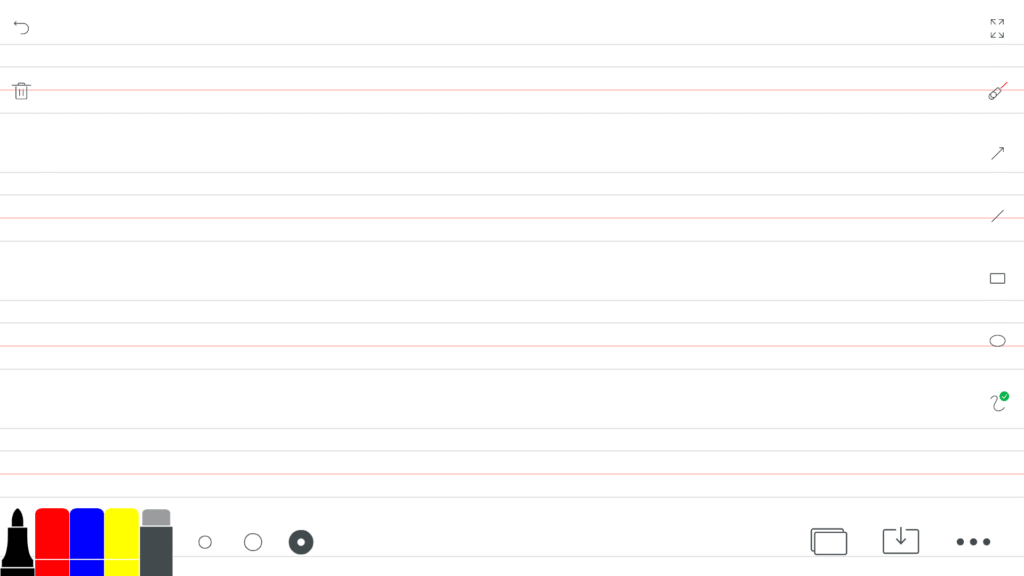
1. Ruled Background
- Structured Note-Taking: Provides clean, evenly spaced horizontal lines that help keep handwriting straight and organized during lectures.
- General Instruction: Ideal for standard writing, grammar exercises, and drafting daily lesson summaries across any grade level.

2. Manuscript Background
- Handwriting Mastery: Features specialized multi-tier guidelines designed to teach young learners proper letter height, alignment, and baseline placement.
- Phonics & Spelling: Perfect for demonstrating alphabet formation, capital versus lowercase sizing, and cursive connection strokes.
3. Graph Background
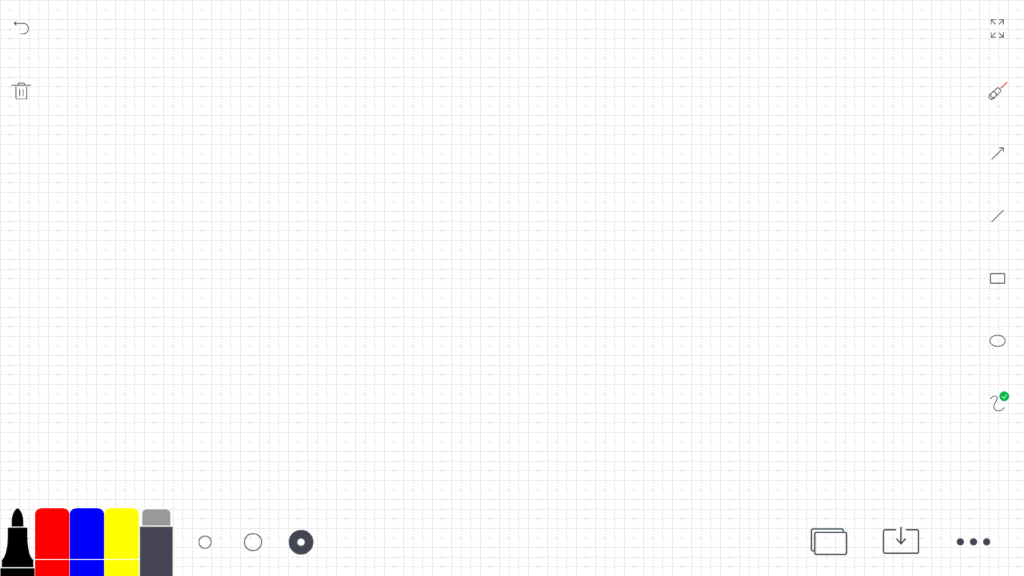
- Mathematical Plotting: Displays a precise Cartesian grid system for plotting coordinates, graphing functions, and geometric transformations.
- Data & Science: Essential for charting experimental data, drawing bar graphs, and mapping out physics vectors accurately.
4. Rice Grid for Chinese Characters (米字格)
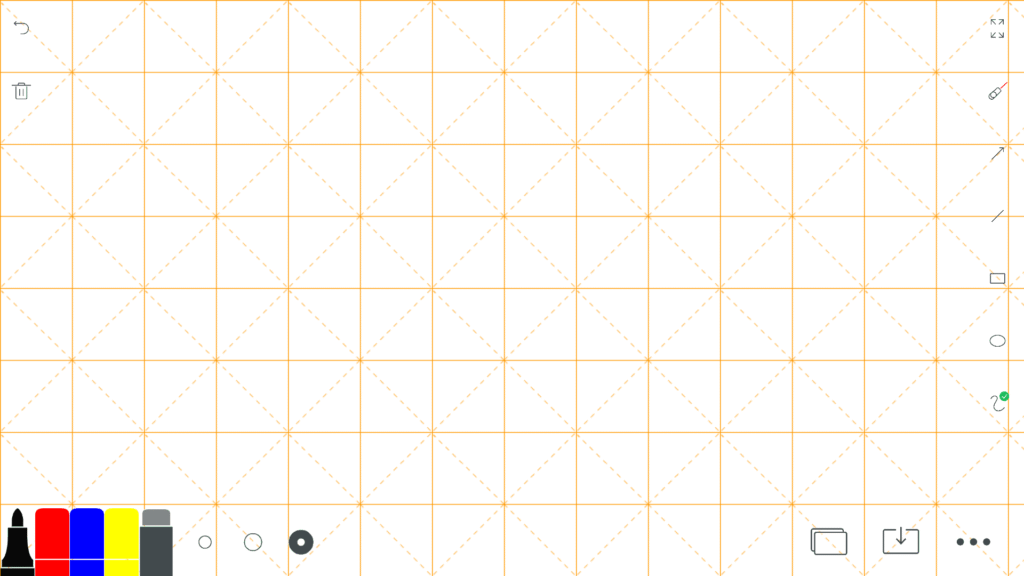
- Character Proportions: Features a central grid divided by diagonal lines (the traditional “rice” pattern) to help students balance character components.
- Stroke Order & Calligraphy: Gives language learners clear structural boundaries for proper radical placement, stroke proportions, and character symmetry.
How to Load and Use Background Templates in Class
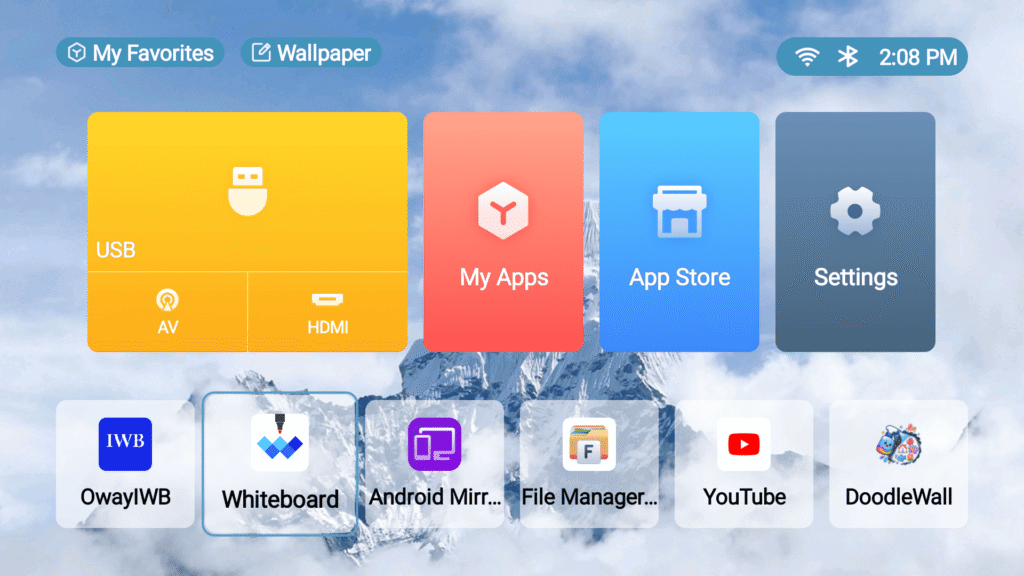
- Open the Whiteboard Application: Launch the native whiteboard suite on your WBiPro system.
- Choose Your Template: Browse the library and select your preferred layout (Ruled, Manuscript, Graph, or Rice Grid).
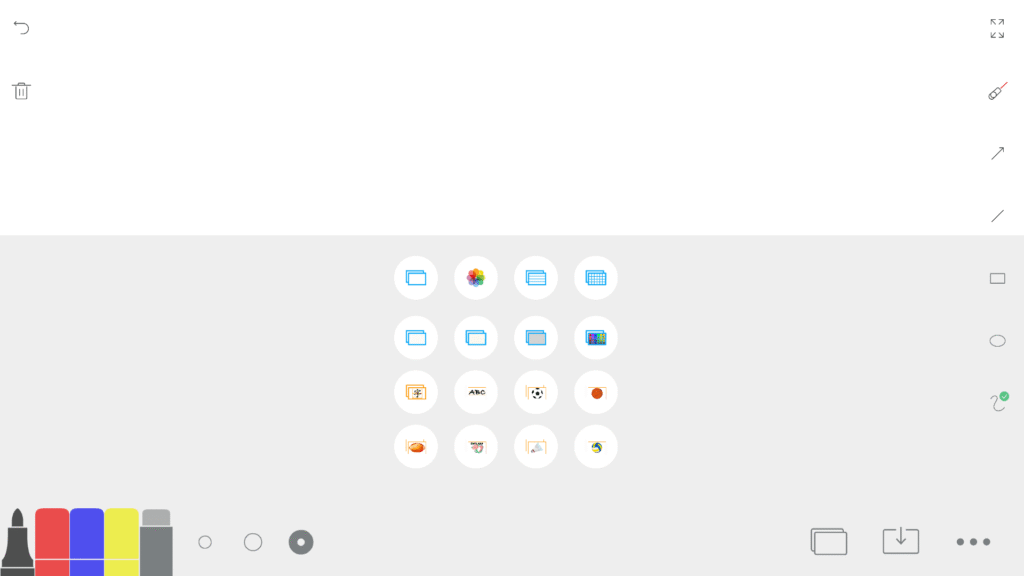
- Annotate & Save: Write freely using the ePen over the structured grid lines, and save your customized workspace for future lessons.
Frequently Asked Questions
What lined and structured backgrounds are available on the WBiPro whiteboard?
The system includes Ruled lines for general writing, Manuscript guidelines for early literacy, Graph grids for mathematics, and Rice Grids for Chinese character practice.
Can I save my annotated templates to use later?
Yes. You can save your customized sessions directly to local storage as workspace files, allowing you to re-open, review, or build upon your lesson notes in future classes.
Do the background lines disappear when I use the eraser tool?
No. The background grid or lines act as a locked, non-destructive template layer, meaning you can erase your handwritten annotations without wiping out the underlying guidelines.