
When teaching across multiple grade levels or preparing lessons for different student cohorts, the Simply Science Teacher Portal makes it easy to switch your active class view. Changing your active class instantly updates your dashboard, curriculum subjects, and assigned resources.
Quick Summary
Use the class selector icon in the top header to seamlessly switch between grade levels (K1–K12) and update your workspace context.
Step 1: Open the Class Selector
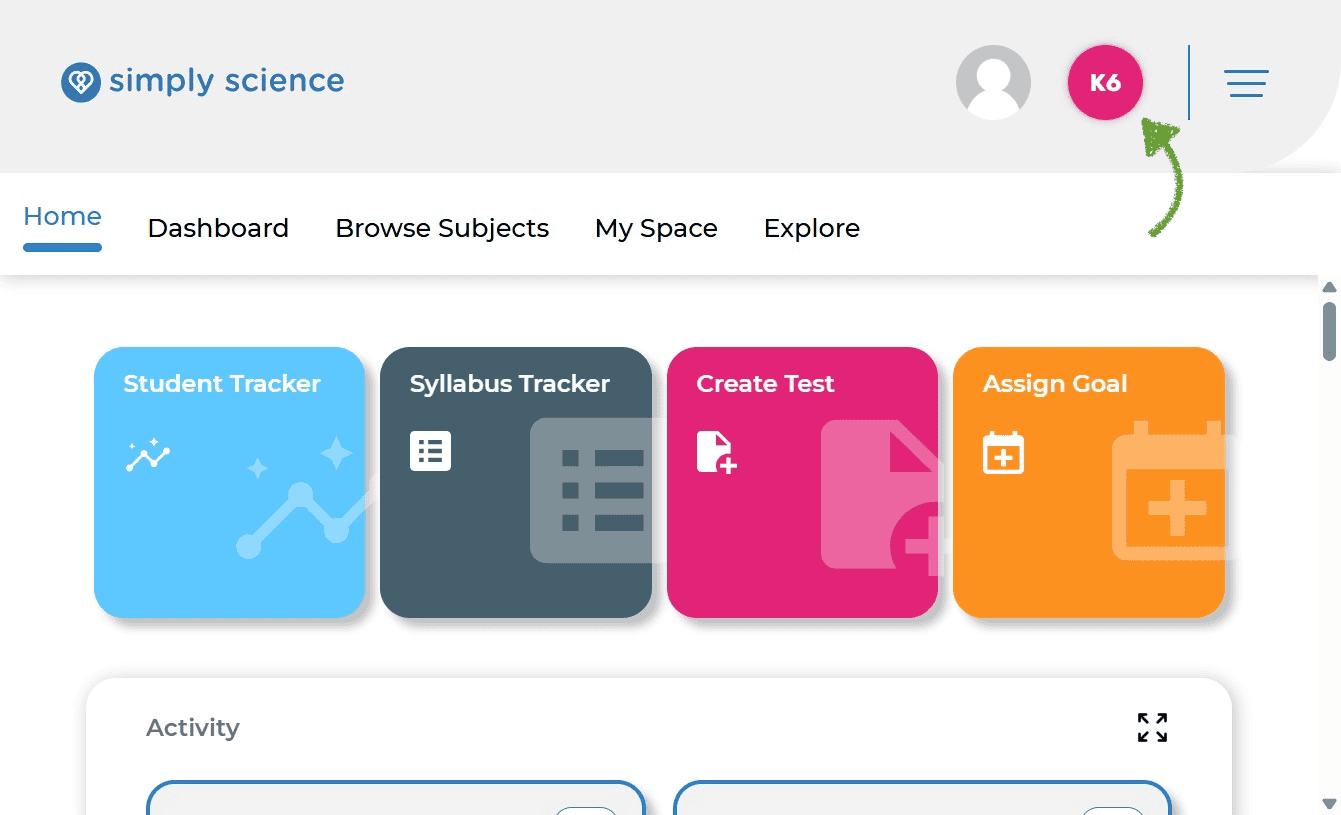
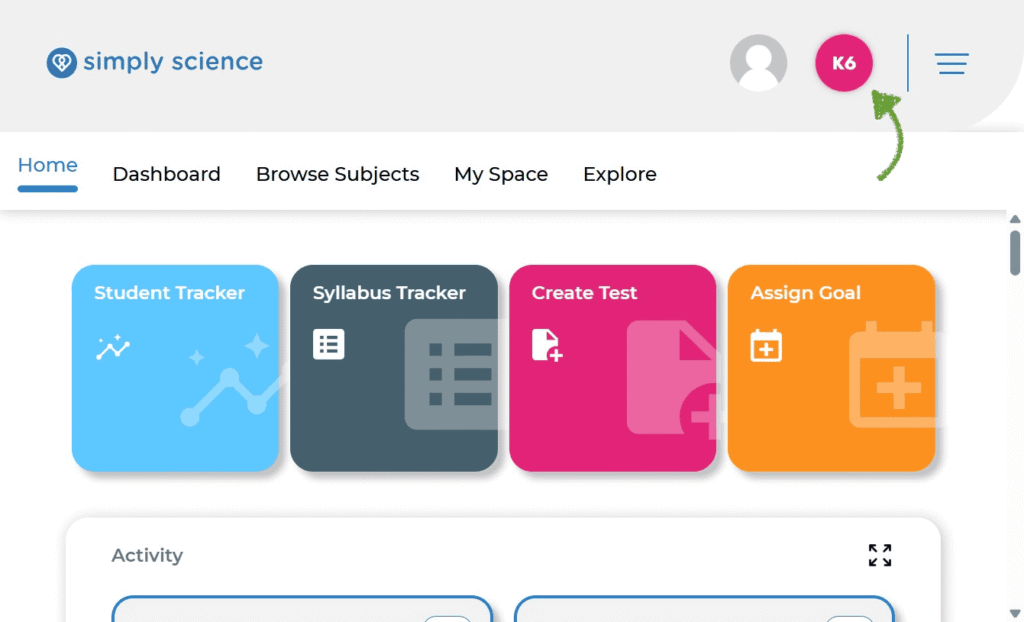
Locate your currently active class indicator in the top-right corner of your portal header.
Action: Click on the active class badge (e.g., K6) located next to your profile icon.
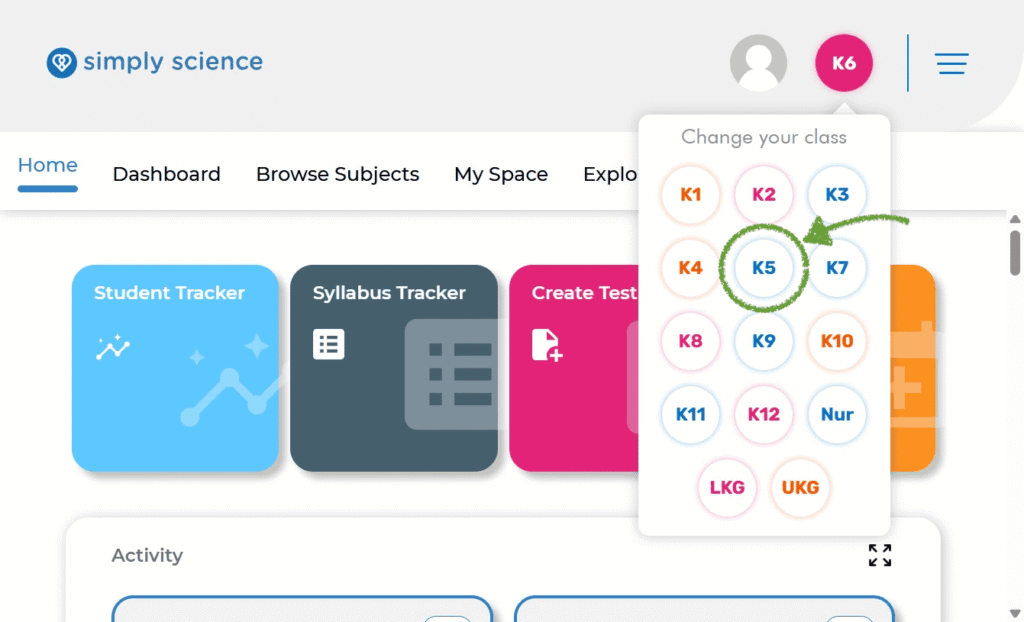
What you will see: A drop-down menu titled “Change your class” displaying all available grade levels and class groups.
Purpose: Opens the class selection menu from anywhere within your teacher portal.
Step 2: Select Your Target Class Level
Choose the specific class or grade level you want to access.
Action: Click on your desired class circle from the grid (for example, click K5).
What you will see: The dashboard updates automatically to display the subjects, syllabus trackers, and teaching resources assigned to the selected grade.
Purpose: Switches your active teaching environment so you can view grade-specific curriculum and student management tools.
📌 Educator Note: Switching your class updates your active workspace context. Tools like Student Tracker, Syllabus Tracker, Create Test, and Assign Goal will reflect data for the newly selected class.