
Managing lesson plans across multiple chapters and grade levels requires quick access to key instructional materials. On the Simply Science Teacher Portal, educators can bookmark important topic pages to build a personalized library of frequently used lessons, lab demonstrations, and presentation resources.
Quick Summary
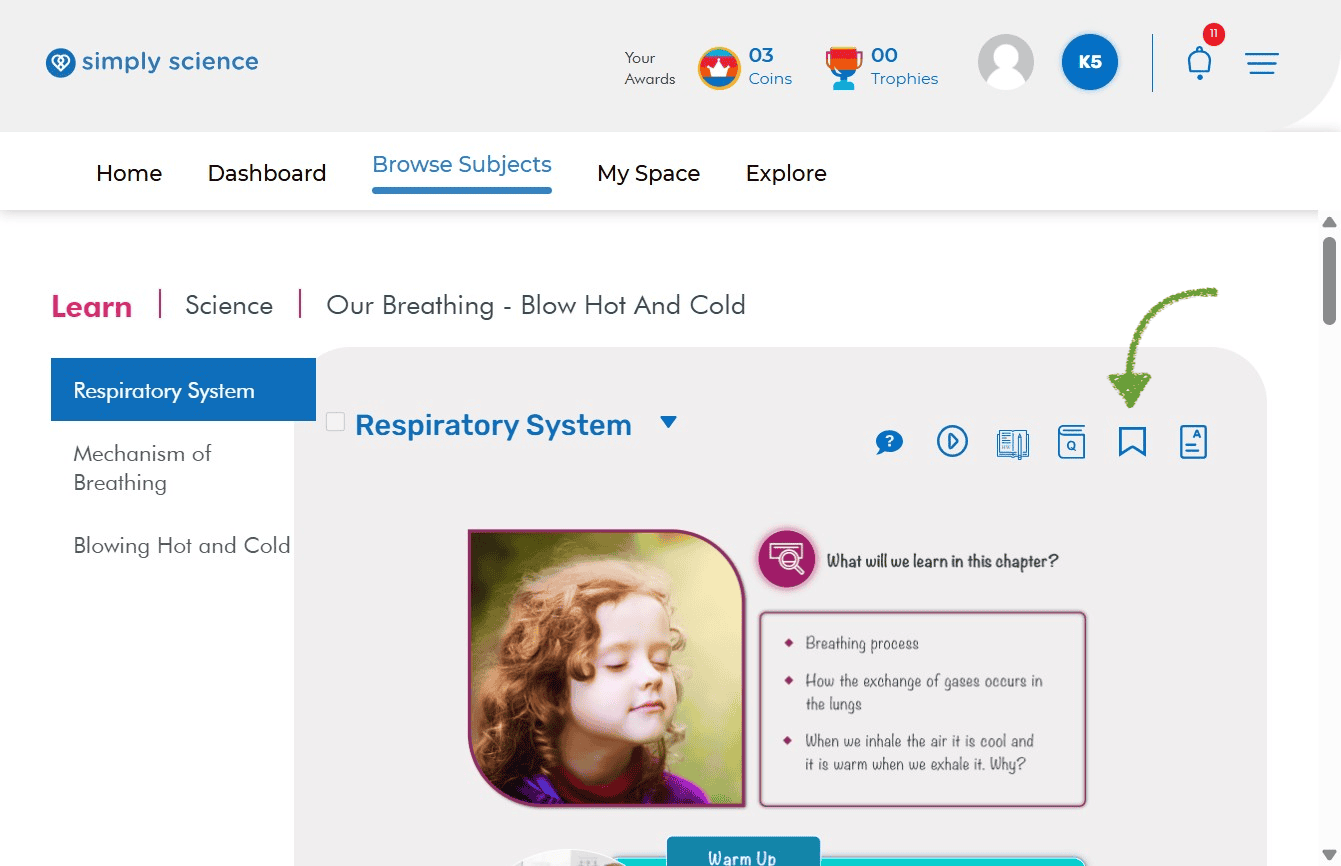
Click the Bookmark ribbon icon at the top of any topic page to save it to your personal workspace for rapid retrieval during lesson preparation or live instruction.
Step 1: Save Lessons with the Bookmark Ribbon Icon
Save any topic or instructional module directly to your saved resources with a single click.
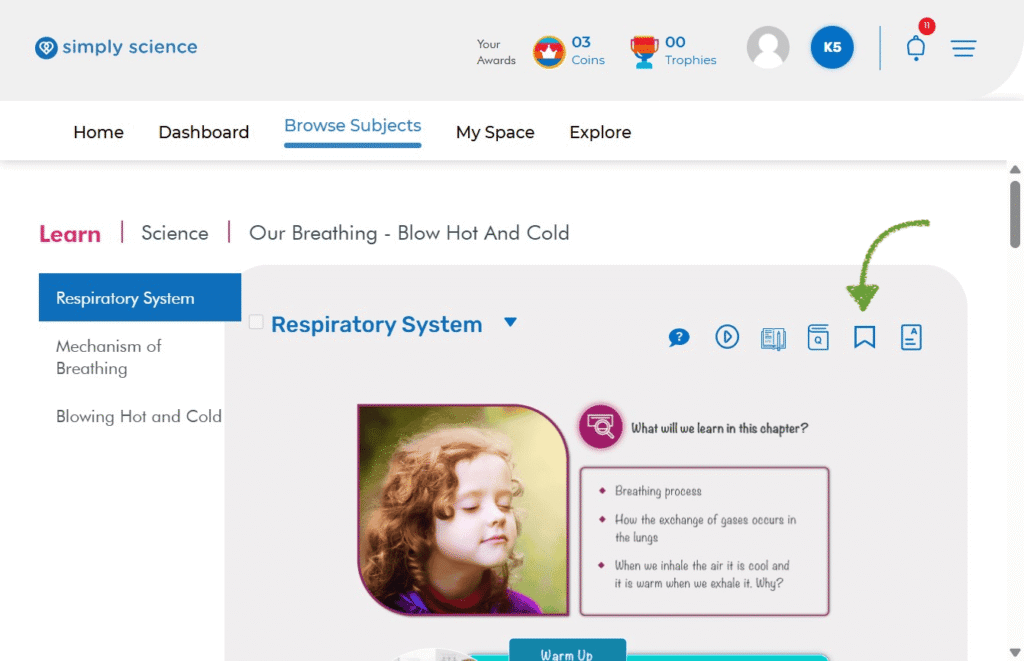
Action: While viewing any topic page you plan to teach or reference later, click the Bookmark Icon (the blue ribbon outline) located in the top-right corner next to the topic title.
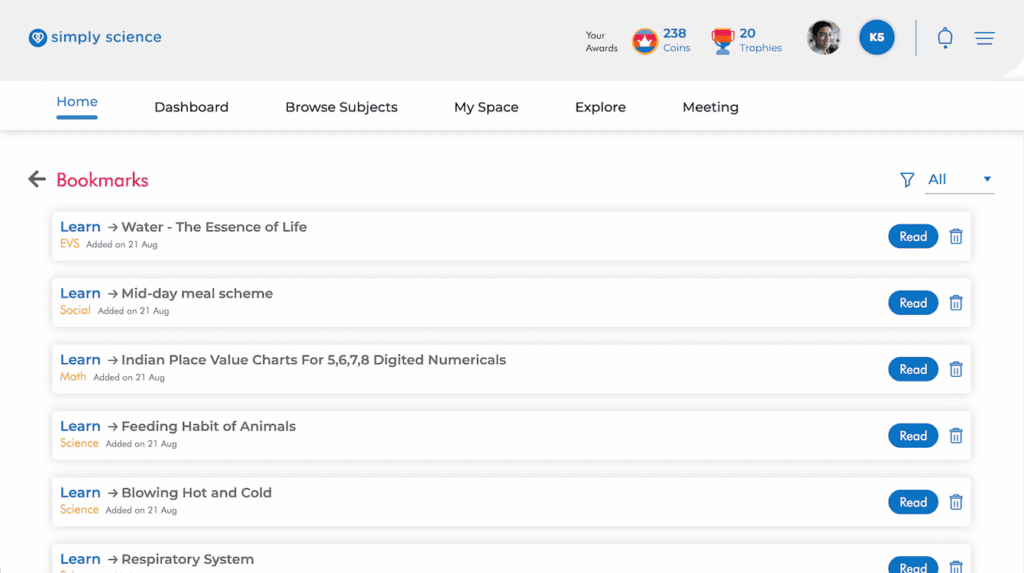
What you will see: The ribbon icon fills to confirm the page has been added to your saved list in My Space.
Purpose: Keeps essential teaching modules organised on your bookmark page so you can launch them instantly during class without manually searching through subjects and chapters.
📌 Educator Note: Bookmark your upcoming week’s lesson topics in advance so you can launch classroom presentations instantly on your digital board or WBiPro interactive smart projector.
Click here to learn how to access the exercises for a lesson.