
Has your teacher set a special test for your class? Teacher-assigned tests are a great way to show off what you have learned during your science lessons and earn awards!
Follow these simple steps to open your test, answer different question types, and turn in your work.
Step 1: Open Your Assigned Tests
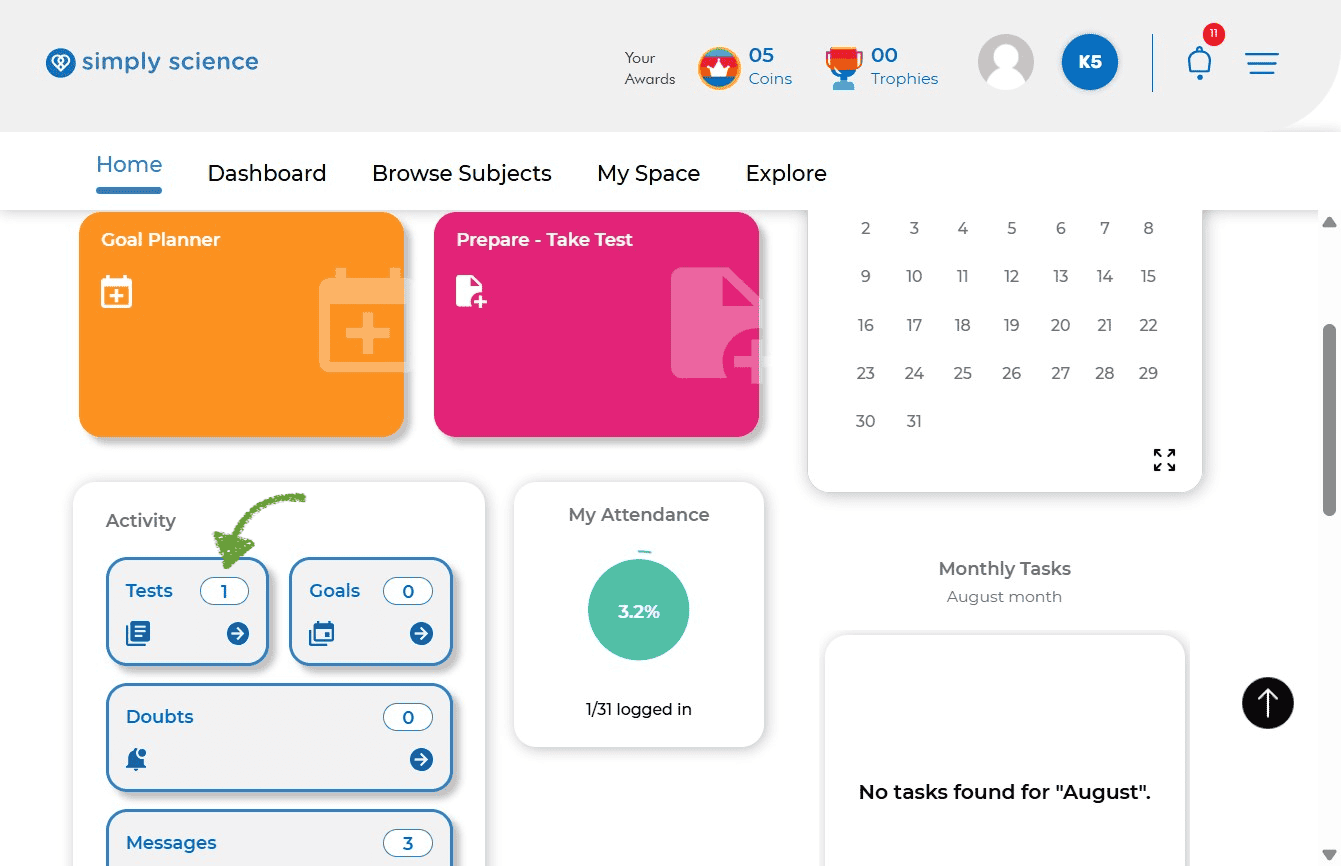
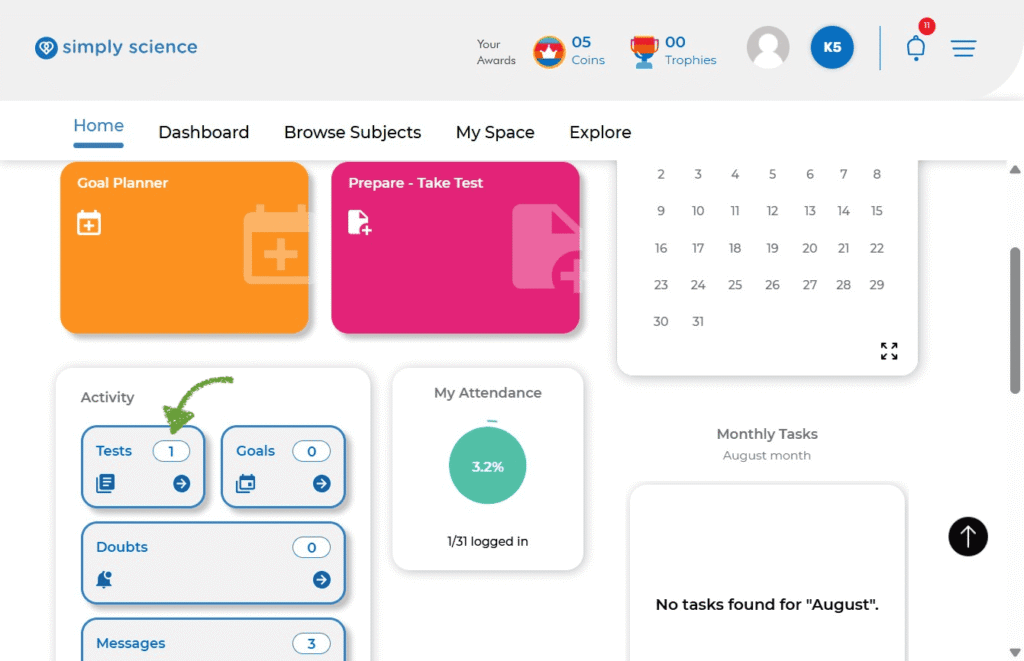
First, head over to your main navigation menu to see what your teacher has prepared for you. The number shows if your teacher has assigned you a test.
Action: Click the Test box in your Activity menu.
What you will see: A list of all active tests assigned by your teacher.
Purpose: Shows you every teacher-assigned quiz ready for you to complete!
Step 2: Start Your Test
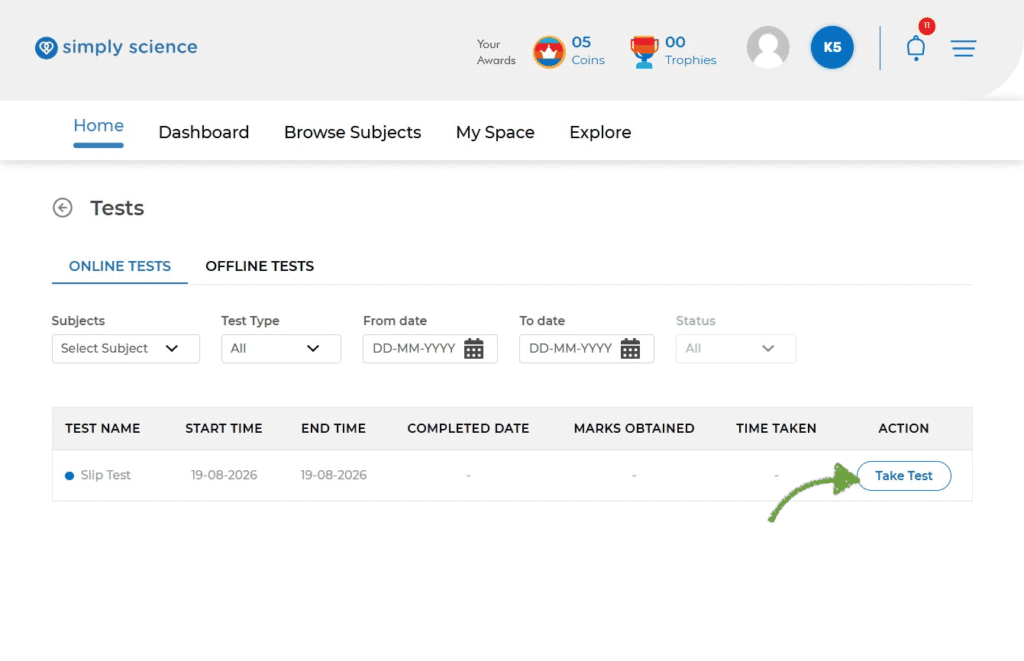
When you are ready to begin, pick your test from the list.
Action: Click the blue Take Test button.
What you will see: Your test page opens up with your very first question ready to solve!
Purpose: Starts your quiz so you can begin answering questions.
Step 3: Type Answers for Fill-in-the-Blanks & Short Answers
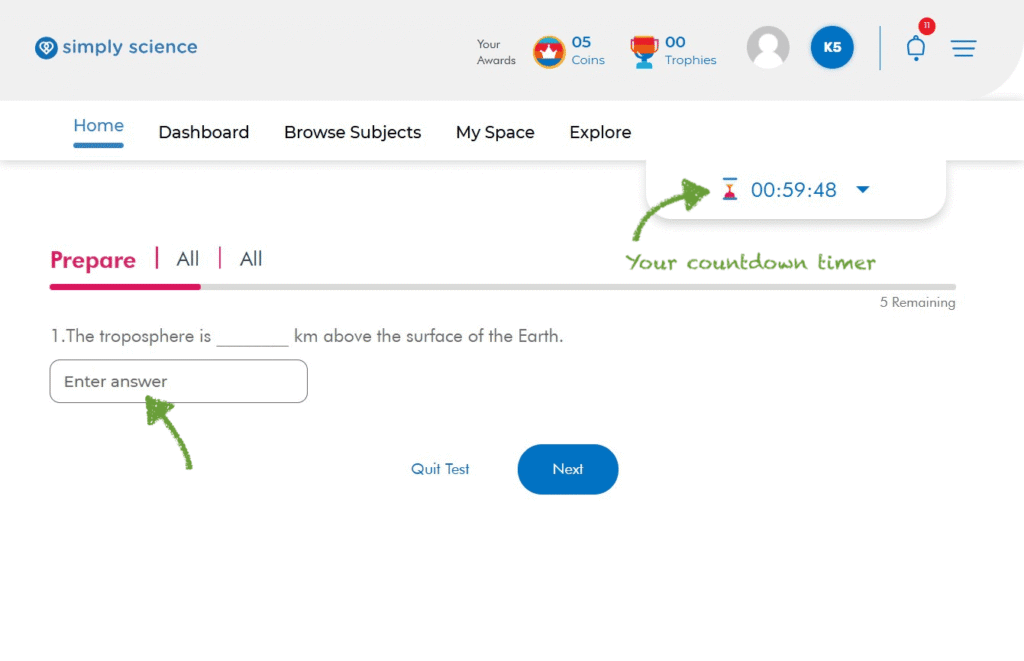
Some questions need you to write out your thoughts or fill in a missing word.
Action: Click on Enter Answer and type your response into the text box.
What you will see: Your typed text appears directly inside the box. Keep an eye on the countdown timer in the top-right corner to manage your time!
Purpose: Lets you submit written explanations and fill-in-the-blank answers.
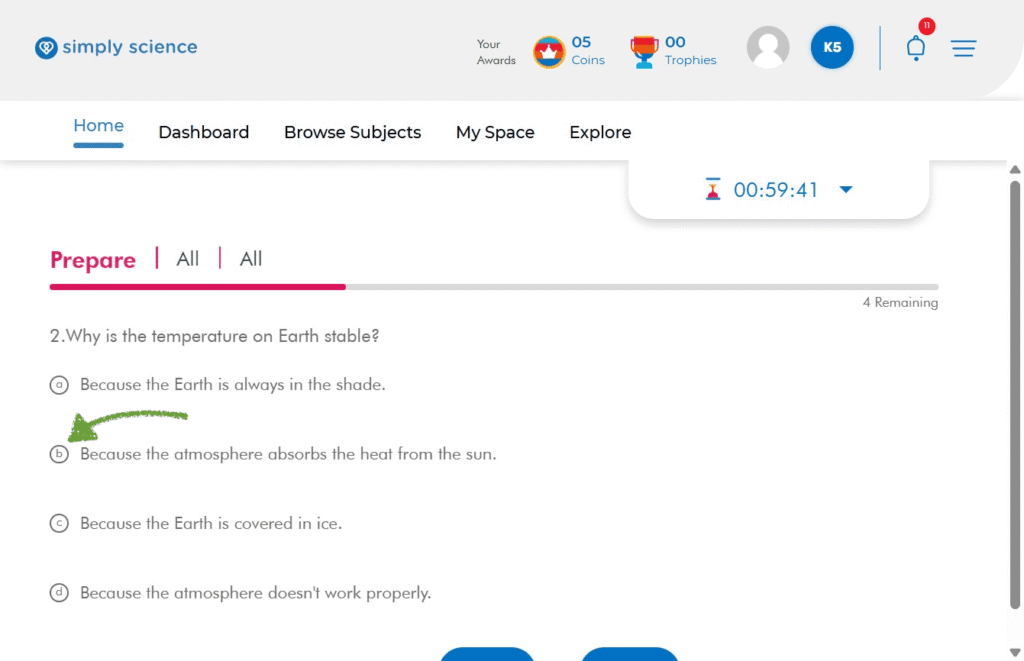
Step 4: Pick Options for Multiple-Choice Questions (MCQs)
For multiple-choice questions, you get to select the best choice from a list.
Action: Click the option you think is correct (for example, Option B).
What you will see: Your selected option lights up or gets marked as your chosen answer.
Purpose: Records your choice before moving ahead!
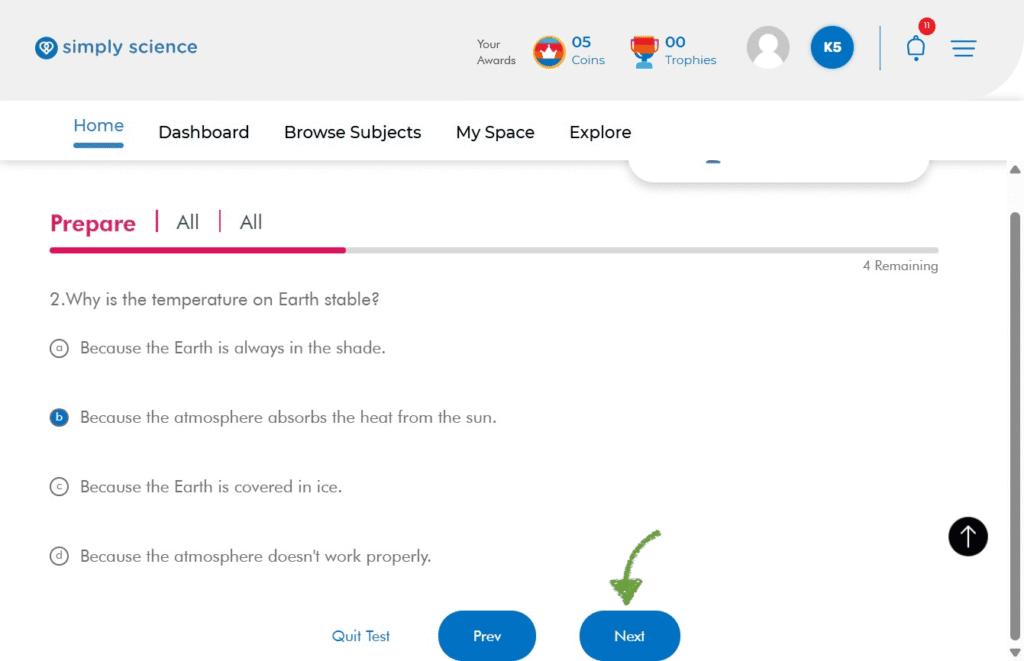
Step 5: Click “Next” for the Next Question
Once you finish answering a question, move right along to the next one!
Action: Click the blue Next button.
What you will see: The screen loads the next question in your test.
Purpose: Keeps your quiz moving forward smoothly until all questions are answered.
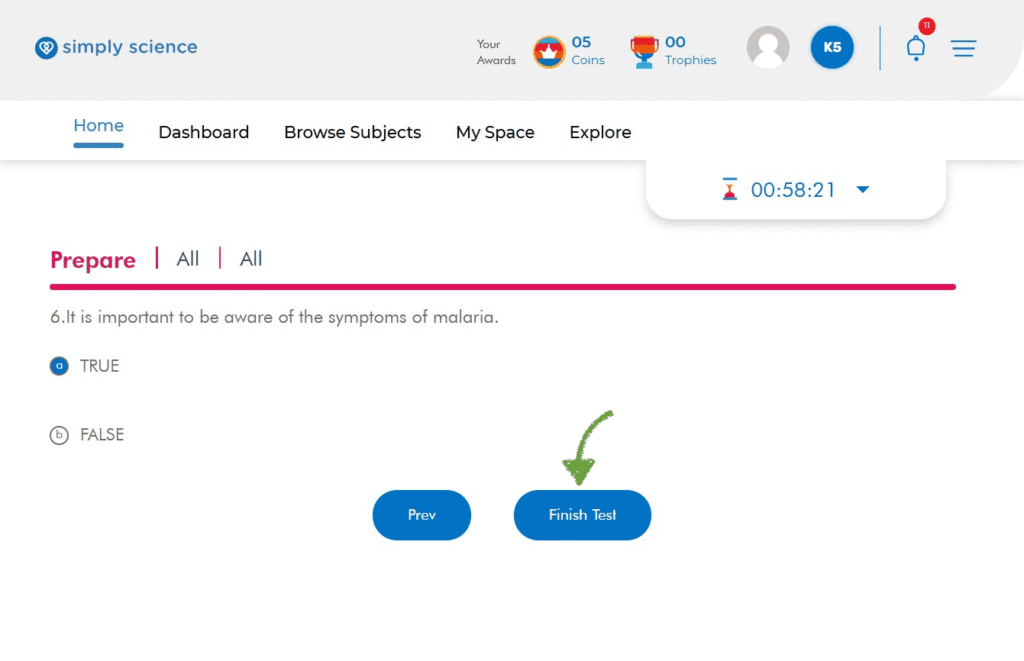
Step 6: Click “Finish Test” to Submit
After answering your very last question, turn in your completed test to your teacher!
Action: Click the blue Finish Test button.
What you will see: Your test submits immediately, and your score summary or confirmation screen pops up!
Purpose: Completes your assessment so your teacher receives your scores.
💡 Classroom Note: Doing your best on teacher-assigned tests is a great way to show off your knowledge, build up your profile trophies, and help your whole class score big points together! Keep up the awesome work!