
Wirelessly mirroring your Android phone or tablet to the WBiPro Interactive Smart Projector allows teachers and students to share educational mobile apps, media, and digital presentations directly onto the main projected screen.
Quick Summary
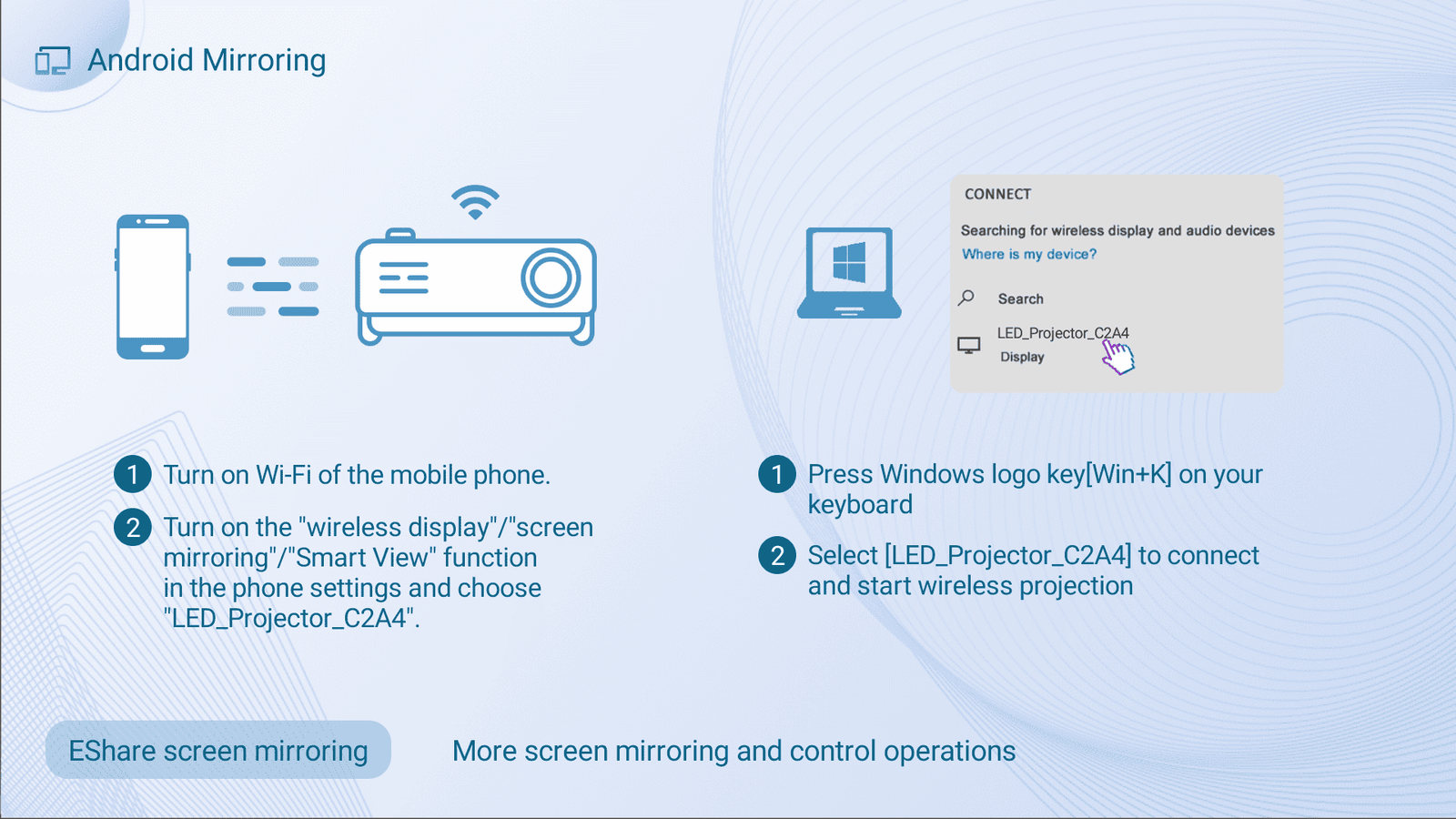
Select the Android Mirror app on the main WBiPro interface, turn on Wi-Fi on your mobile device, access your device’s native screen mirroring feature, and choose the matching projector code to mirror your display.
Step 1: Open the Android Mirror App on WBiPro
Launch the receiver software on the projector home screen to prepare for incoming wireless connections.
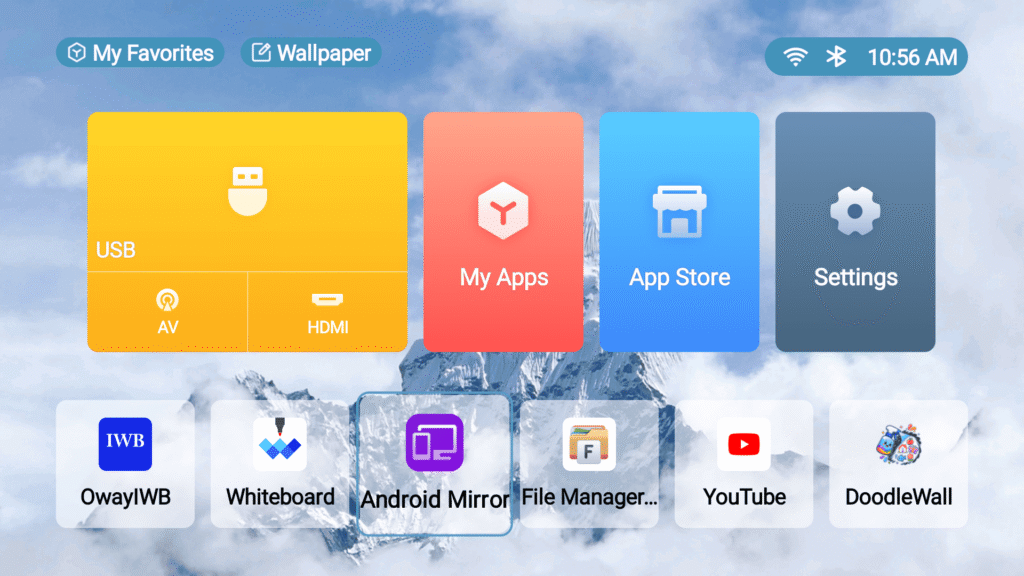
- Action: Navigate to the lower app toolbar on the main WBiPro screen and select the purple Android Mirror app icon.
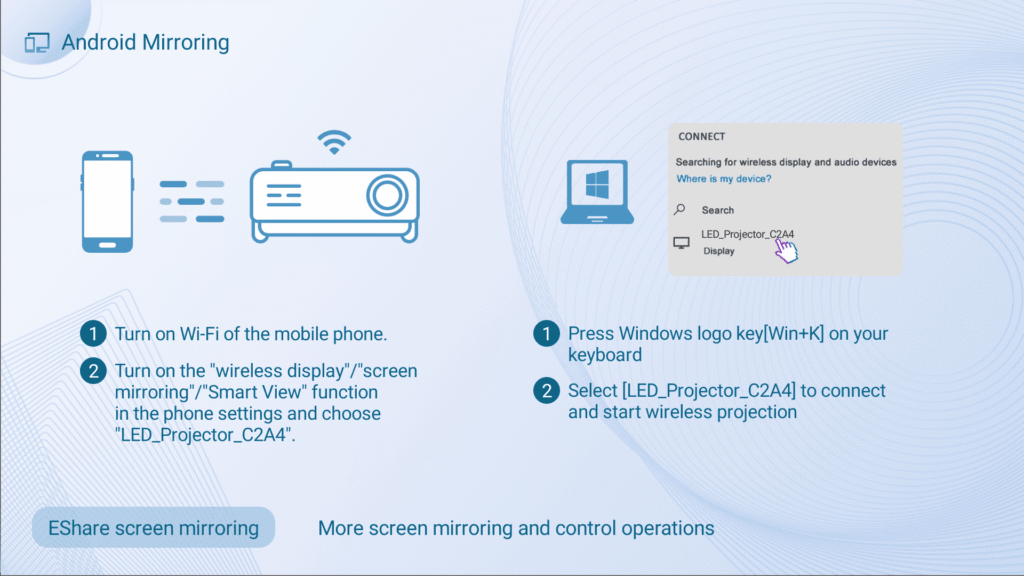
- What you will see: The screen updates to display the Android Mirroring setup interface showing the projector’s wireless broadcast code (e.g.,
LED_Projector_C2A4). - Purpose: Prepares the WBiPro projector as an active wireless receiver for Android screen casting.
Step 2: Enable Wi-Fi on Your Android Device
Turn on wireless connectivity on your mobile device or tablet to discover available display receivers.
- Action: Swipe down to open Quick Settings or go to Settings > Wi-Fi on your Android device and toggle Wi-Fi ON.
- What you will see: Your device prepares to scan for local wireless display receivers.
- Purpose: Enables the necessary wireless protocols to discover the WBiPro projector.
Step 3: Access the Screen Mirroring Feature on Android
Locate the native screen casting feature on your specific mobile device brand.
Depending on your device manufacturer, the screen mirroring tool is named differently:
- Samsung: Smart View or Quick Connect
- Xiaomi / Poco: Cast or Wireless Display
- Oppo / Vivo / Realme: Screencast or Smart Mirroring
- OnePlus: Screen Projection
- Huawei: Wireless Projection
- Google Pixel / Motorola: Cast
Step 4: Pair with the WBiPro Projector Code
Establish the wireless connection between your Android device and the projector display.
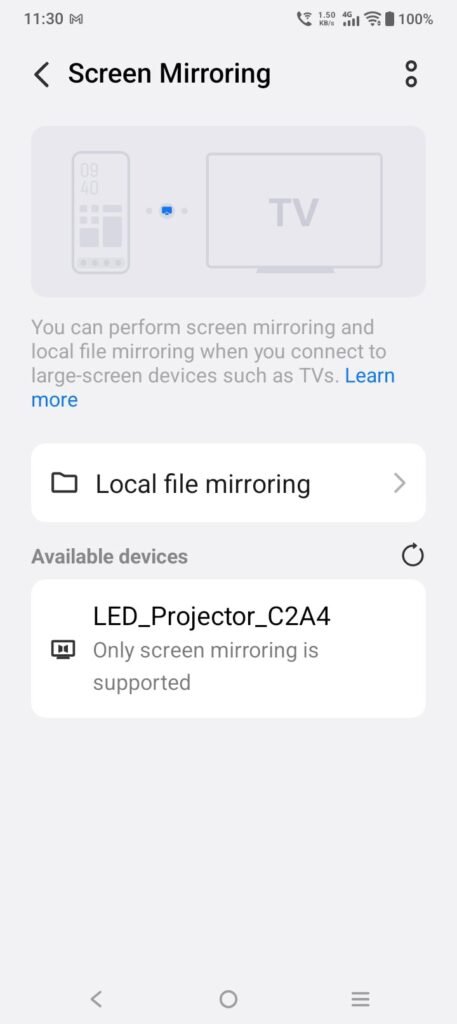
- Identify the unique projector code displayed on the WBiPro screen (e.g.,
LED_Projector_C2A4). - From your Android device’s screen mirroring menu, select the matching device name.
- What you will see: A short pairing prompt appears, followed by your Android screen mirroring live onto the WBiPro projector screen.
- Purpose: Connects your mobile device display output directly to the projector screen.
Step 5: Adjust Device Display & Operational Settings
Optimise your mobile screen orientation for full-screen projection viewing.
- Screen Operations: All navigation and actions must be performed directly on your Android mobile device.
- ePen Compatibility Note: The WBiPro interactive ePen stylus is not supported in Screen Mirroring mode, as touch inputs are handled natively by your mobile device.
- Orientation Setup: Turn on Auto-rotate on your Android device and turn your phone/tablet into Landscape Mode.
- What you will see: Your mirrored display expands sideways to fill the entire WBiPro projection screen.
- Purpose: Maximizes the projection display area for classroom presentation.