Visual aids and animations enhance student engagement during complex STEM topics. Simply Science provides embedded high-definition video lessons directly within topic modules, allowing teachers to play, pause, and review key concepts seamlessly during live instruction.
Quick Summary
Locate the video player tab on your lesson topic page and use standard playback controls to stream multimedia content for your class.
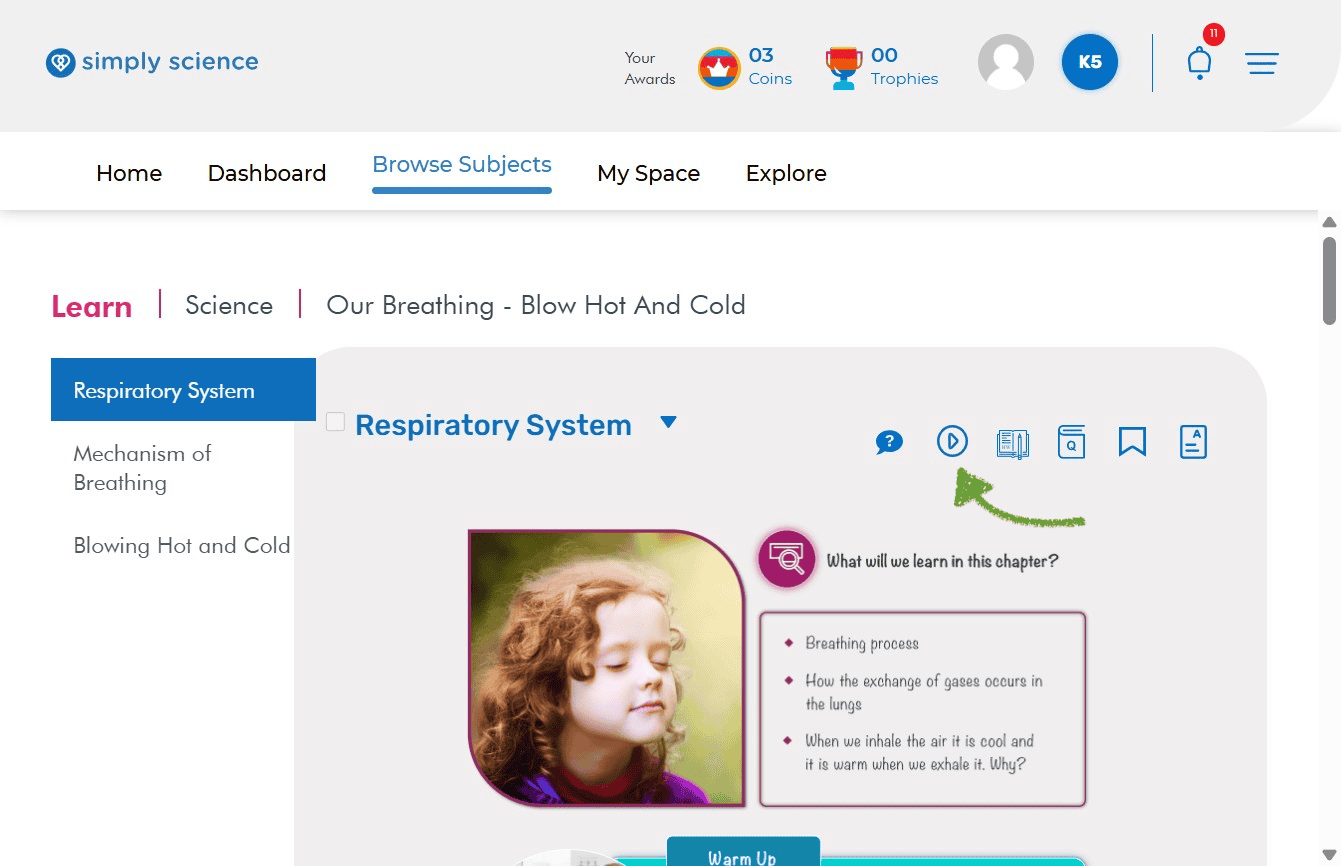
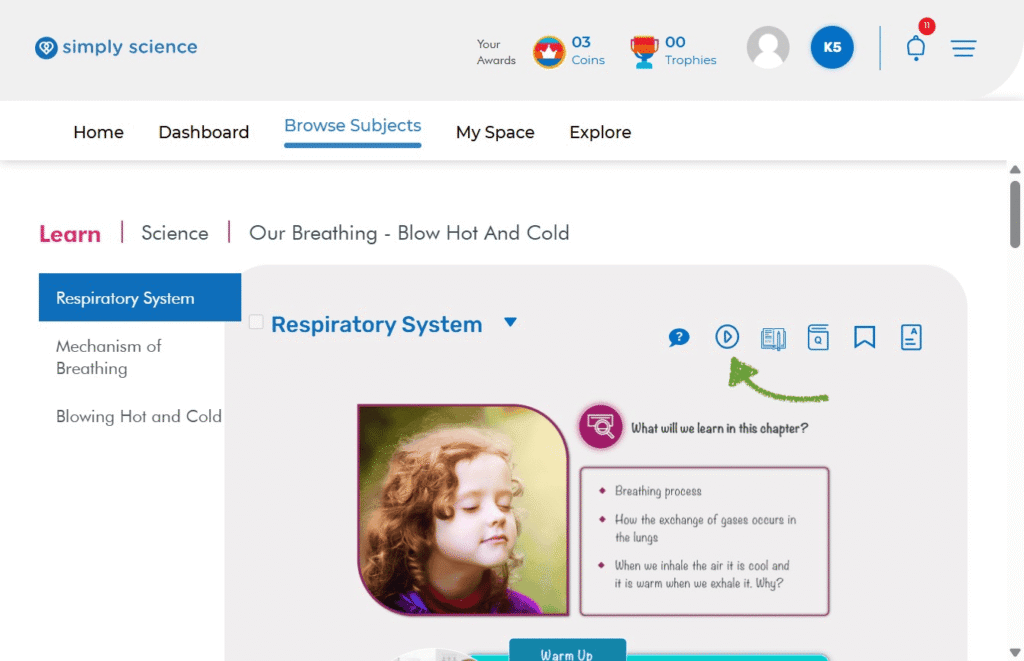
Step 1: Open the Video Tab in Your Lesson
Navigate to your active lesson topic page to locate the dedicated multimedia resources.
Action: Click on the Video tab or video icon within the lesson workspace.
What you will see: The interactive video player loads directly inside your main content pane.
Purpose: Prepares the video resource for immediate viewing without leaving your lesson workflow.
Step 2: Control Video Playback for Classroom Teaching
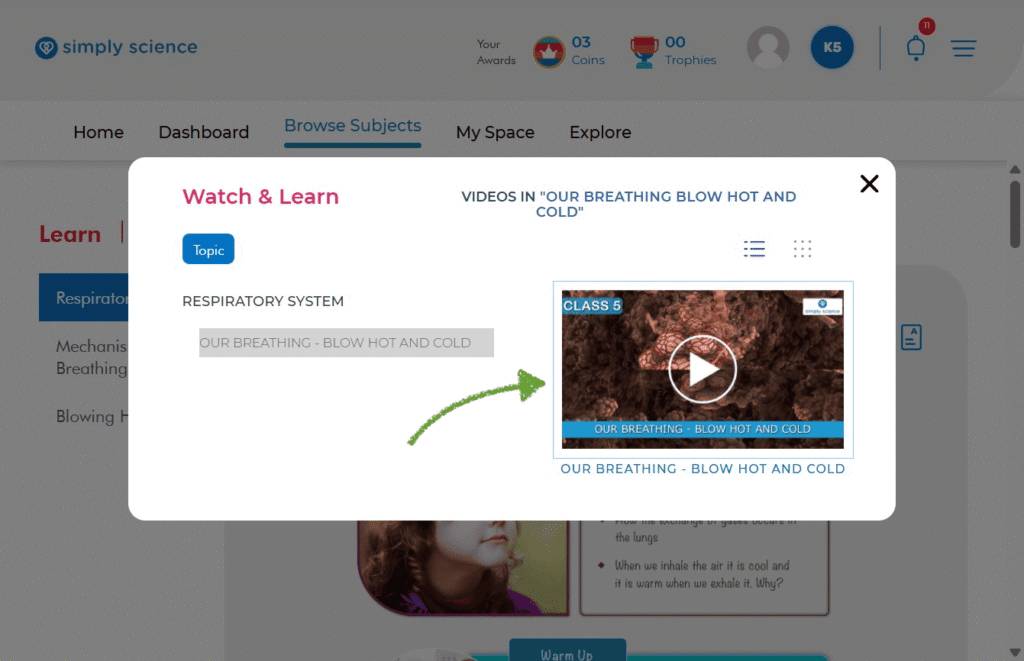
A pop-up window titled Watch & Learn will appear on your screen. Use the playback bar to present multimedia content to your students effectively.
- Click the Play button to begin streaming the video.
- Use Pause to freeze key frames for live classroom explanation or discussion.
- Click the Fullscreen button in the bottom-right corner of the video player for large-screen projection.
- What you will see: High-definition animations and narrated explanations play smoothly across the screen.
- Purpose: Delivers engaging visual learning directly onto classroom monitors or interactive displays.
📌 Educator Note: You can pause videos at key moments to ask check-for-understanding questions or project the video onto your WBiPro interactive smart projector for whole-class viewing.
Step 3: Manage Classroom Audio and Close Video
Control classroom audio levels and exit video playback smoothly once finished.
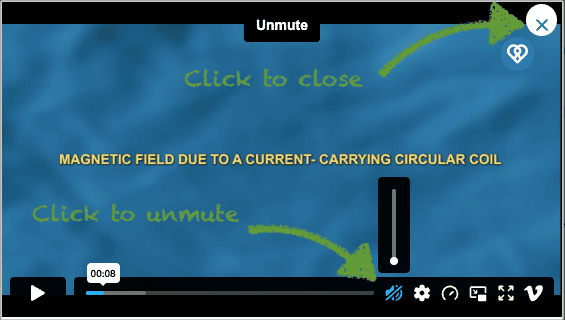
To Unmute or Adjust Sound: Click the Mute/Unmute Icon (the speaker symbol in the bottom-right corner) or adjust the volume slider to ensure narration is clearly audible throughout the classroom.
To Close the Video: Click the X button in the top-right corner to exit video view and return immediately to your main lesson module page.
Purpose: Ensures clear audio delivery for your students and seamless navigation back to written lesson materials.